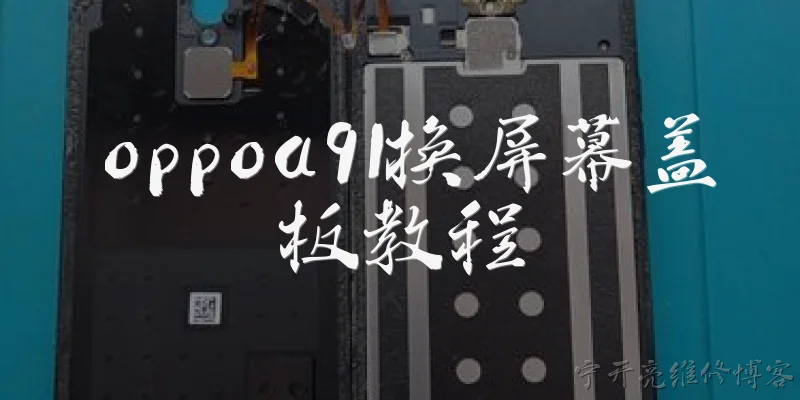
OPPO A91 screen cover replacement tutorial:How do I replace the screen cover on my OPPO A91?
Q: How do I replace the screen cover on my OPPO A91?
A: Replacing the screen cover on your OPPO A91 requires careful preparation. First, power off the phone and remove the SIM tray. Use a heat gun or hairdryer to soften the adhesive around the edges of the screen, but avoid overheating. Once the adhesive is pliable, insert a suction cup near the bottom edge and gently pull up to create a small gap. Slide a plastic pry tool along the edges to cut through the adhesive, working slowly to avoid damaging the LCD. Disconnect the screen flex cable from the motherboard. Remove any residual adhesive from the frame and clean the surface with isopropyl alcohol. Apply new adhesive strips to the frame, then connect the new screen cover and press it firmly into place. Reassemble the phone and test the touch response and display. This process takes about 30–45 minutes and requires precision. If you're not confident, seek professional help to prevent further damage.
Q: What tools and materials do I need for an OPPO A91 screen cover replacement?
A: To replace the screen cover on your OPPO A91, gather the following tools: a heat gun or hairdryer, a suction cup, plastic pry tools, a small Phillips screwdriver, and a SIM ejector tool. You'll also need isopropyl alcohol (90% or higher), lint-free cloths, new adhesive strips designed for the OPPO A91, and a replacement screen cover (ensure it's compatible with your model). Optional but helpful: a magnetic mat to keep screws organized, tweezers for handling small parts, and a spudger for prying. Avoid using metal tools that can scratch the frame or damage internal components. Work in a well-lit, clean area to prevent dust from getting under the screen. If you're replacing only the outer glass (not the LCD), a separate glass-only option may be cheaper, but it requires more skill to separate the layers. Always buy from a reputable seller to ensure quality and fit. Having the right tools minimizes the risk of damaging your phone.
Q: What are common mistakes to avoid when replacing the OPPO A91 screen cover?
A: When replacing the OPPO A91 screen cover, several common mistakes can lead to damage. First, using too much heat can harm the LCD or internal components; keep the heat source moving and at a moderate temperature. Second, prying too aggressively can crack the screen or break the frame—always use plastic tools and work slowly. Third, forgetting to disconnect the battery before removing the screen flex cable can cause short circuits; always power off and disconnect the battery first if possible. Fourth, not cleaning old adhesive properly can result in a poor fit or touch issues. Fifth, using low-quality adhesive or screen covers may cause the screen to lift or malfunction. Finally, rushing the reassembly can pinch cables or leave screws loose. Take your time, follow a step-by-step guide, and if you feel uncertain, stop and consult a professional. Avoiding these mistakes will help ensure a successful replacement and preserve your phone's functionality.
Words of experience
Common scenarios of "OPPO A91 screen cover replacement tutorial"
【User】 Hey, I just cracked my OPPO A91 screen and need to replace the screen cover. Can you help me with a tutorial?
【TechSupport】 Sure! I can guide you through replacing the screen cover on your OPPO A91. First, do you have all the necessary tools? You'll need a heat gun or hair dryer, suction cup, plastic pry tool, Phillips screwdriver, and a new screen cover.
【User】 I have a hair dryer and a small screwdriver, but I don't have a suction cup or pry tool. Can I use something else?
【TechSupport】 You can try using a strong tape folded into a handle as a makeshift suction cup, and a guitar pick or old credit card can work as a pry tool. But be careful not to damage the frame.
【User】 Okay, I'll try that. What's the first step?
【TechSupport】 First, power off your phone completely. Then use the hair dryer to warm up the edges of the screen for about 2-3 minutes to soften the adhesive.
【User】 Got it. How do I know when it's warm enough?
【TechSupport】 The screen should be warm to the touch but not too hot to handle. If it's too hot, let it cool for a bit. You don't want to damage the internal components.
【User】 Alright, I've warmed it up. Now what?
【TechSupport】 Use your makeshift suction cup or tape to gently lift the screen from the bottom edge. Insert your pry tool into the gap and slowly work your way around the edges to cut through the adhesive.
【User】 I'm having trouble getting it started. Any tips?
【TechSupport】 Try applying a little more heat to the edges. Also, make sure you're prying at the correct seam—between the screen and the frame, not the frame and the back cover.
【User】 Okay, I managed to lift it a bit. But there's a ribbon cable attached. How do I disconnect it?
【TechSupport】 Be very careful. Use your pry tool to gently lift the connector from the motherboard. It might be secured with a small bracket; if so, remove the screws first. Never pull on the cable itself.
【User】 I see a small metal bracket. I'll unscrew it. Then just pop the connector off?
【TechSupport】 Yes, gently pry it up from the edges. Once disconnected, you can fully remove the old screen cover.
【User】 Now I have the new screen cover. How do I install it?
【TechSupport】 First, clean the frame thoroughly to remove any old adhesive. Then peel off the protective film on the new screen cover's adhesive, align it carefully, and press it down firmly starting from one corner.
【User】 Should I reconnect the ribbon cable before or after pressing it down?
【TechSupport】 Reconnect the ribbon cable first, then secure the bracket, and then press the screen into place. Test the phone before fully sealing it to make sure everything works.
【User】 Great, it's working! Thanks for the help. Any final tips?
【TechSupport】 You're welcome! Just make sure the screen is properly seated and all screws are tightened. If you notice any issues, don't hesitate to ask. Enjoy your repaired phone!